DNS not handed to clients

Hello, people! I’m John…and I seem to perhaps ruffled some feathers, and for that I am extremely sorry.

I simply need some help with my PiFi…

My PiFi does not seem to want to ‘hand out’ to my IOT gadgets the desired DNS, which is good 'ol 8.8.8.8 It is handing out 192.168.1.1, which is the address of my PiFi.

I’m not sure what to do about this. Please help!
Thank you.
John

Hi,

Not at all, there’s no feathers ruffled in the slightest please don’t worry about that. I think this may be because of AdGuard Home is configured on PiFi - and perhaps configuring it via AdGuard Home settings could be the solution.

I will follow up with you on this but I do need to test it first to see if I can replicate what you’re seeing and force it to use 8.8.8.8 instead

P.s I changed title as no apology ever needed. And also if we get this resolved it’ll help anyone with same issue find it

Oh, thank you so much. I was afraid I had violated some protocol…after all, I’m 78 years old and still don’t understand 6-7…

Information: At this moment, I have NO ADGUARD set up. I do carefully save my settings, then make 1 change, then save settings again.
I have tried it both ways, with AND witout adguard.

The command ps | grep -E ‘dnsmasq|udhcpd|odhcpd’ told me I am running dnsmasq.
BUT! sudo nano /etc/dnsmasq.conf to attempt to edit that file and add dhcp-option=6,8.8.8.8,1.1.1.1 for whatever reason I am not able to edit, gives me sudo not found… I must not know precisely how to edit a file…
THEN! Adding insult to injury,

https://downloads.openwrt.org/releases/24.10.1/packages/aarch64_cortex-a76/telephony/Packages.gz
*** Failed to download the package list from https://downloads.openwrt.org/releases/24.10.1/packages/aarch64_cortex-a76/telephony/Packages.gz
Errors
Failed to send request: Operation not permitted
Collected errors:

opkg_download: Failed to download https://downloads.pifi.org/1.5.2/Packages.gz, wget returned 4.

opkg_download: Check your network settings and connectivity.

opkg_download: Failed to download https://downloads.openwrt.org/releases/24.10.1/targets/bcm27xx/bcm2712/packages/Packages.gz, wget returned 4.

opkg_download: Check your network settings and connectivity.

opkg_download: Failed to download https://downloads.openwrt.org/releases/24.10.1/packages/aarch64_cortex-a76/base/Packages.gz, wget returned 4.

opkg_download: Check your network settings and connectivity.

opkg_download: Failed to download https://downloads.openwrt.org/releases/24.10.1/packages/aarch64_cortex-a76/luci/Packages.gz, wget returned 4.

opkg_download: Check your network settings and connectivity.

opkg_download: Failed to download https://downloads.openwrt.org/releases/24.10.1/packages/aarch64_cortex-a76/packages/Packages.gz, wget returned 4.

opkg_download: Check your network settings and connectivity.

opkg_download: Failed to download https://downloads.openwrt.org/releases/24.10.1/packages/aarch64_cortex-a76/routing/Packages.gz, wget returned 4.

opkg_download: Check your network settings and connectivity.

opkg_download: Failed to download https://downloads.openwrt.org/releases/24.10.1/packages/aarch64_cortex-a76/telephony/Packages.gz, wget returned 4.

opkg_download: Check your network settings and connectivity.
The opkg update command failed with code 7

If I put one of these downloads simply into a browser, it indeed downloads it and saves to my PC.
So, there is my complete dilemma at this moment.
Thank you so much for the help.
John

Hi John, good details, thank you for sharing all that.

OpenWrt doesn’t use sudo, so the correct command to edit would be:

vi /etc/config/dhcp

That said, you usually shouldn’t need to edit DNS or DHCP settings through the console unless something’s really stuck.

Can I first check whether you’ve used the PiFi App before, or if you’re managing everything purely through OpenWrt’s LuCI interface?

The wget returned 4 error often points to a system time mismatch, which breaks HTTPS connections. To confirm:

  • Run date in the console, or
  • In LuCI: go to System → System and check the displayed time.

If it’s incorrect, you can:

  • In the PiFi App, open Settings → More Settings → Refresh Timezone to sync it instantly, or
  • In LuCI, click Sync with browser.

If you prefer to manually set your DNS servers, you can do so cleanly from:

PiFi App → Settings → AdGuard Home → Settings → DNS settings

Enter your preferred upstream DNS (e.g. 8.8.8.8 and 1.1.1.1) there.

If you’ve already customised your LAN IP or have other settings you’d rather not reset, you can alternatively edit via console:

vi /etc/config/dhcp

and under the config dhcp 'lan' section, add:

option dhcp_option '6,8.8.8.8,1.1.1.1'

then restart DNS:

/etc/init.d/dnsmasq restart

If this doesn’t do the job, I have another suggestion that does it via AGHome but let’s see how we get on with this
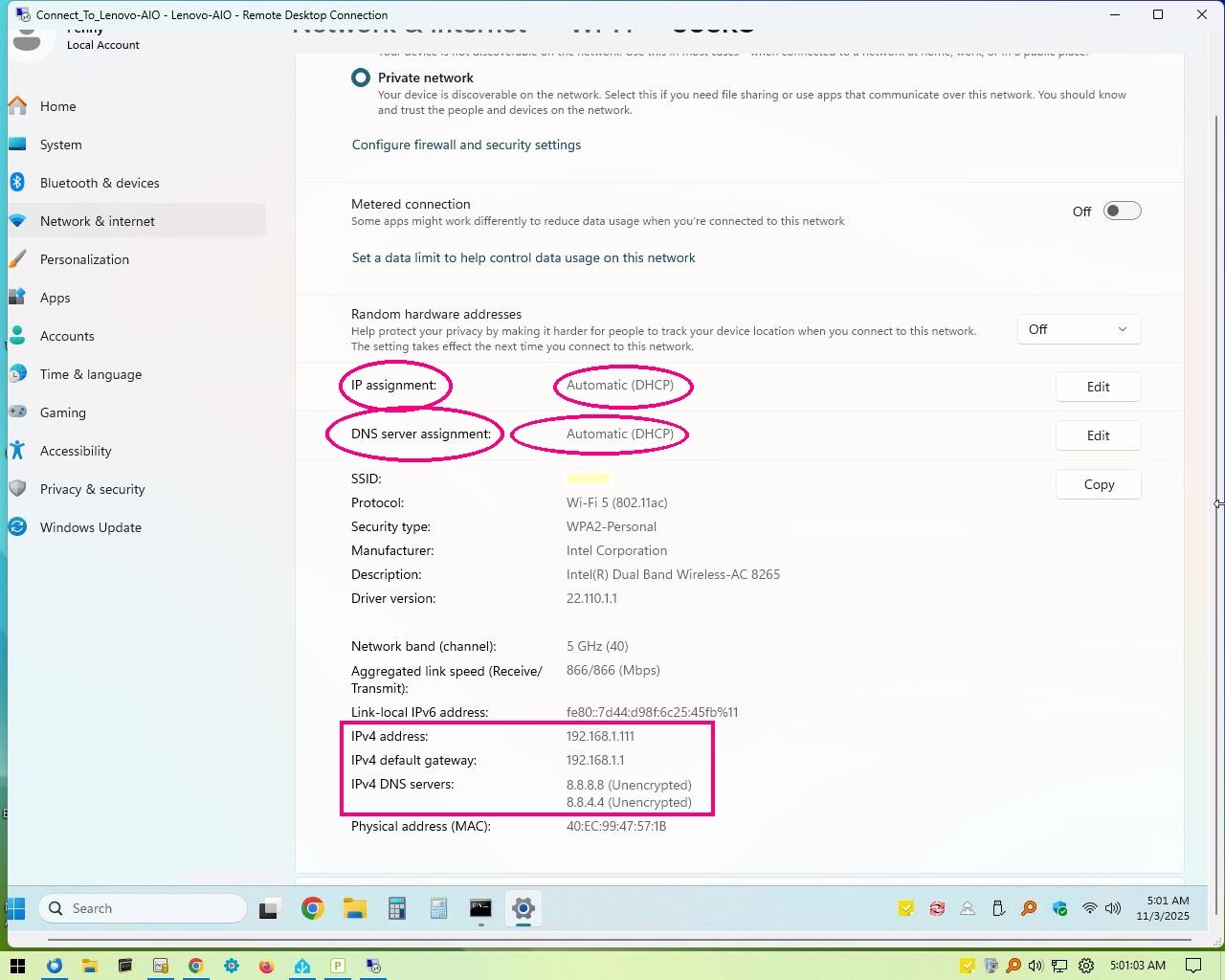
BOTTOM LINE: SUCCESS!!

Broken down as:
Yes, I have used the PiFi App before.
Yes, the Date/Time shows correct in SYSTEM - SYSTEM check displayed time
wget returning error 4: NO LONGER IMPORTANT or necessary to investigate further!
Re iterating: I am NOT using adguard. (I Tried it both ways, with and without)
WHAT DID WORK:
vi /etc/config/dhcp
and under the config dhcp 'lan' section, add: EDITED, showed 6,192.168.1.1
option dhcp_option ‘6,8.8.8.8,1.1.1.1’ I used 6,8.8.8.8,8.8.4.4
then restart DNS:
/etc/init.d/dnsmasq restart

ABSOLUTE SUCCESS!

See attached screenshot from a wireless PC

So, I want to thank you so much for all your help.
John

1 Like

Glad to hear you have it working now!!

Thanks again, all.
John